Remita RRR Payment: How to Generate, Use and Pay with Your Remita Retrieval Reference (2026)
Last updated: July 2026
You have been asked to pay on Remita. The instruction came from JAMB, your university’s bursary office, FIRS, CAC, your state’s revenue board, or a dozen other government bodies that have made Remita the single payment gateway for billions of naira in public collections every year. And somewhere in the instruction, either prominently or buried in fine print, three letters appear: RRR.
This guide exists because that is where most people get stuck.
Not on the payment itself – Nigerian bank apps, USSD codes, and branch counters are familiar territory. The confusion is upstream: what the RRR actually is, whether to generate one yourself or wait for an institution to send it, what to verify before paying, and critically, what to do when the process breaks down in one of several predictable ways.
By the time you finish reading this, the entire lifecycle of a Remita RRR payment – from generation through to a downloadable, institution-accepted receipt – will make complete sense.
What Is the Remita RRR?
RRR stands for Remita Retrieval Reference. It is a unique 12-digit number that the Remita platform generates for every individual payment transaction initiated through its system.
Think of it as a payment address. Before any money moves on Remita – before JAMB confirms your CBT slot, before your university’s portal marks your fees as cleared, before FIRS logs your tax remittance – a Remita RRR must exist and a payment must be completed against it. The RRR is what connects your money to the right institution, the right account, and the right purpose.
Every RRR is permanently bound to four things:
- Your identity – your name, matric number, TIN, NIN, or registration number, depending on the biller
- The specific institution – the government agency or organisation receiving the payment
- The exact amount – Remita will reject payment for any amount that differs from the figure locked into the RRR at generation
- The payment purpose – school fees, tax, licence renewal, and so on; the same institution may have multiple RRR types for different services
This specificity is not bureaucratic inconvenience. It is the security architecture that makes the Remita system auditable, fraud-resistant, and tamper-proof at scale. SystemSpecs, the Nigerian technology company that built and operates Remita, designed it this way specifically because it processes public funds – including the Federal Government’s entire Treasury Single Account (TSA) inflows.
What a valid RRR looks like: 12 consecutive digits, no letters, no spaces, no special characters. Example: 280016171872. If the RRR you received has fewer or more than 12 digits, contains letters, or includes dashes or spaces, it is either invalid or being misread. Verify it before attempting payment.
How the Remita RRR System Works (The Full Architecture)
Before you generate or pay anything, this context will save you from the most common errors.
When a biller – FIRS, a university, CAC, a state ministry – is onboarded to Remita, they are assigned a unique Remita Merchant ID. Every service they offer (annual returns, school fees, renewal fees) is mapped to a specific sub-account under that ID. When you generate an RRR for that biller, Remita creates a transaction record that maps your identity and payment amount to that specific sub-account.
When you pay – regardless of channel – Remita’s settlement engine receives the payment notification from your bank, matches it to the RRR, and notifies the biller’s system that payment is confirmed. The biller’s system then updates your record: your JAMB registration proceeds, your clearance form unlocks, your CAC certificate is queued for processing.
This is why the right biller and the right service type matter so much at the RRR generation stage. A wrong selection at that point routes your money to the wrong account – a problem that requires inter-agency reconciliation to fix and can take weeks to resolve.
How to Get Your Remita RRR: Two Routes
Route 1 – The Institution Generates It for You
For JAMB UTME and DE registrations, many university portal-based fee payments, NCC licence renewals, and some NYSC obligations, the institution controls the RRR generation process. They create the RRR on their system after you complete the required registration steps, and deliver it to you via email, SMS, or your student or client portal account.
When this happens, your job is verification, not generation. Go to remita.net, enter the RRR you received, and confirm that the biller name, amount, and purpose match exactly what you were told. If they match, proceed to pay. If they don’t, stop immediately and contact the institution before paying anything.
Why this matters: A Remita RRR payment applied to the wrong transaction is not automatically reversed. You will have paid, but the institution’s system will not register it as payment for your specific obligation. The money exists in the right biller’s account – but applied against a different record, or sitting unmatched in the settlement queue.
Route 2 – You Generate It Yourself on remita.net
For FIRS income tax and VAT remittances, CAC annual returns and business registration fees, state government levies, NYSC obligations (in some states), and most variable-amount government payments, you generate the RRR yourself on the Remita platform. There is no pre-generated number waiting for you – you must initiate the transaction first.
This is the route most people search for when they type “how to generate RRR on remita” or “www remita net to generate rrr.” The full process is in the next section.
How to Generate a Remita RRR on www.remita.net (Step-by-Step)
You do not need a Remita account to generate an RRR. The platform allows guest generation for most billers, which means this process works even if you have never used Remita before.
Step 1: Open your browser and go to www.remita.net
Use any browser – Chrome, Firefox, Safari – on a phone or computer. Do not use unofficial apps or third-party portals that offer to “generate your RRR” unless they are the official portal of the institution you are paying. The only legitimate RRR generation point for most government payments is the official Remita platform itself, or the institution’s own verified portal that is built on the Remita API.
Step 2: Select your biller category from the homepage
The Remita homepage presents three primary options:
- Pay a Federal Government Agency – for FIRS, CAC, NCC, NYSC, FAAN, and all FGN-linked payments
- Pay a State Government Agency – for state-level revenue boards, ministries, and agencies
- Pay a Biller – for universities, hospitals, professional bodies, and non-government organisations that collect via Remita
Select the category that accurately describes who you are paying. Selecting the wrong category means searching through the wrong database of billers.
Step 3: Search for and select your specific biller
Type the name of your institution or agency in the search bar. For FIRS, type “Federal Inland Revenue.” For your university, type the full name. For CAC, type “Corporate Affairs Commission.” Read the full biller name in the results carefully – multiple billers with similar names exist, and some state agencies share naming conventions with federal ones. Select the exact institution you intend to pay.
Step 4: Select the specific service or payment type
Each biller on Remita has multiple service types listed under their account – annual returns, direct assessment tax, school fees, hostel fees, acceptance fees, and so on. Select the one that matches your specific payment obligation. If you are unsure which service type applies to your situation, contact the institution directly before proceeding. Selecting the wrong service at this step is equivalent to paying the wrong account.
Step 5: Enter your personal and transaction details
The form will request:
- Full name – enter it exactly as it appears on your government ID or institutional records; this name appears on your Remita receipt
- Email address – your receipt and payment confirmation will be sent here
- Phone number – must be active; OTP-based verification may be triggered
- Payer ID – this field changes by biller type. For FIRS it is your Tax Identification Number (TIN). For JAMB it is your registration number. For universities it is your matric number. For CAC it is your RC number. Enter the correct identifier for your biller.
- Amount – pre-populated for fixed-amount payments; editable for variable payments like tax remittances
Step 6: Generate and save your RRR
Click Submit or Generate. Remita processes your input and displays your unique 12-digit RRR alongside a full payment summary – biller name, amount, your name, and the purpose.
Do all three of the following before closing this page:
- Screenshot the page showing your RRR and payment summary
- Write down or copy the 12-digit RRR to a separate location
- Note the amount displayed – you will pay exactly this figure; it cannot be changed after generation
Your RRR is now live in the Remita system. Most government RRRs are valid for 30 to 90 days. After expiry, the RRR becomes invalid and a new one must be generated – the payment window does not extend automatically.
Nigerian Digital Lending Intelligence Report 2026 Best Value
How to Pay Your Remita RRR: Every Channel Explained
You have your RRR. Here is every payment route available in 2026, with the honest trade-offs of each.
Online Card Payment (Fastest – Recommended)
Go to remita.net and click the Pay button on the homepage. Enter your 12-digit RRR and click Search. The platform retrieves and displays your payment details – biller name, amount, your name. Verify these carefully. Click Proceed, then select Card Payment. Enter your debit card number, expiry date, and CVV. Your bank sends an OTP to your registered phone number – enter it to authenticate. A payment confirmation screen appears within 60 seconds of OTP entry. Download your receipt immediately from this screen. Do not close the tab before downloading.
Card payment is the fastest channel and generates the most complete digital receipt in real time. It also carries the lowest risk of settlement delay.
USSD Payment (No Internet Required)
Every major Nigerian bank supports Remita RRR payment via USSD. The USSD channel works on any phone – smartphone or basic handset – and does not require mobile data, making it the most accessible option when internet is unavailable.
| Bank | USSD Code | Path |
|---|---|---|
| GTBank | *737# | Bills → Remita → Enter RRR |
| Access Bank | *901# | Pay Bills → Remita → Enter RRR |
| First Bank | *894# | Pay Bills → Remita → Enter RRR |
| Zenith Bank | *966# | Payments → Remita → Enter RRR |
| UBA | *919# | Payments → Remita → Enter RRR |
| Fidelity Bank | *770# | Bills → Remita → Enter RRR |
| Stanbic IBTC | *909# | Pay Bills → Remita → Enter RRR |
After entering your RRR, confirm the amount and biller name displayed before approving the payment. USSD sessions time out after approximately 30 seconds of inactivity – have your RRR and PIN ready before dialling.
Internet Banking
Log into your bank’s internet banking platform. Navigate to “Pay Bills,” “Transfers,” or any section labelled “Remita” – the naming varies by bank but all major Nigerian commercial banks are Remita-integrated. Select Remita as the biller, enter your RRR when prompted, and the system retrieves your payment details automatically. Confirm the amount and biller, then approve the transaction with your transaction PIN or hardware token. Record your bank’s transaction reference number alongside your RRR – you will need both for any follow-up.
Bank Branch Payment (Cash or Debit)
Walk into any commercial bank branch in Nigeria. Inform the teller you want to make a Remita payment and provide your 12-digit RRR. The teller retrieves your payment details on their Remita-connected terminal and processes the payment against the exact displayed amount – in cash or by debit card. Collect your bank teller receipt as initial proof of payment. After leaving the branch, return to remita.net and download your official Remita e-receipt using your RRR. The bank teller receipt alone is not what most institutions accept – the official Remita PDF receipt is the required document.
Branch payment is the best option for those without functional debit cards, those making large cash payments, or in situations where digital channels are experiencing downtime. The RRR you generated online is equally valid for branch payment – generation channel and payment channel do not need to match.
Remita Mobile App
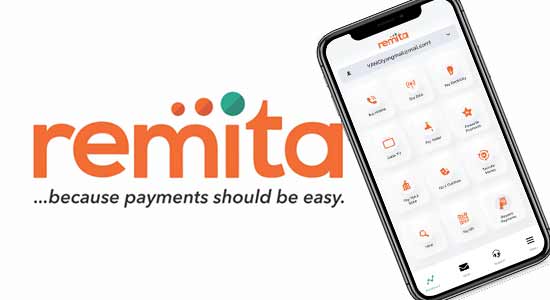
Download the Remita app from the Google Play Store or Apple App Store. Register or log in. Select Pay from the dashboard, enter your RRR or scan the QR code if one was provided by your institution, confirm the payment details, and complete the transaction using your registered debit card or linked bank account. The Remita mobile app stores all your payment receipts in your transaction history, accessible at any time without returning to the website. For users who make multiple Remita RRR payments across the year – tax payers, business owners filing annual returns – the app is the most convenient ongoing solution.
How to Verify Your Remita RRR Payment and Download Your Receipt
Paying and confirming are two separate steps. The receipt is not your bank debit alert. The receipt is an official Remita-generated document that confirms the biller has been credited.
To get your official receipt:
- Go to remita.net
- Click Confirm Payment or Reprint Receipt on the homepage
- Enter your 12-digit RRR
- Remita displays your payment status, transaction date, amount, payment channel, and confirmation number
- Click Download Receipt and save the PDF
A confirmed receipt will show a unique transaction confirmation number in addition to your RRR – this is what institutions verify when they check your payment on their portal. A payment status showing only your RRR without a confirmation number is still pending.
If your status shows Pending:
Wait 30 minutes. Interbank settlements on Remita typically clear within this window. If still pending after two hours, check whether your bank account was debited. If debited but Remita shows pending, do not pay again – contact Remita support at support@remita.net with your bank transaction reference and your RRR. If not debited, the payment did not leave your bank – retry using a different channel.
Common Remita RRR Problems and Exactly How to Fix Them
“RRR not found” when attempting payment
The RRR was generated on a third-party portal (JAMB, university student portal, state revenue portal) and has not yet synced to Remita’s central database. Wait 15 to 30 minutes and retry. If unfound after two hours, the problem is at the institution’s end – contact them directly to confirm the RRR was successfully registered on Remita.
Debited but payment shows pending or failed on Remita
Your bank processed the debit but Remita has not received confirmation. This is a settlement lag issue. Do not attempt a second payment. Wait two to four hours. If still unresolved, email support@remita.net with three things: your 12-digit RRR, your bank transaction reference number, and your proof of debit (bank alert screenshot or statement entry). Remita’s reconciliation team resolves these cases by matching the bank transaction against the RRR in their settlement engine.
Amount shown on remita.net does not match what you were told
Stop. Do not pay. Either you entered the wrong biller or service type when generating the RRR, or the institution has updated its fee schedule since the RRR was generated. Contact the institution for a corrected RRR or updated instructions before proceeding.
“Invalid RRR” error
Count your digits. A valid RRR is exactly 12 digits with no letters, dashes, or spaces. If the digit count is correct and you are still seeing this error, the RRR may have expired. Contact the institution to generate a fresh one for the same obligation.
Paid the wrong RRR
Contact Remita support immediately at support@remita.net – do not wait. Provide your bank transaction reference, the RRR you paid, and documentation showing the correct RRR you intended to pay. Recovery timelines depend on the receiving biller’s refund policy and can take several weeks for government agency payments. Speed of escalation directly affects how quickly this is resolved.
RRR vs. Remita Receipt: The Distinction That Causes the Most Confusion
These two things are different, and confusing them causes real problems at institutional submission points.
Your RRR exists before payment. It is your payment identifier – the reference that tells Remita who you are, what you owe, and to whom the money should go. You use the RRR to initiate and complete your Remita RRR payment.
Your receipt exists after payment. It is the official confirmation document that the transaction completed successfully and the biller’s account was credited. It contains your RRR plus the transaction confirmation number, transaction date, payment channel, and biller acknowledgement.
For JAMB admission processing, university clearance, CAC certificate issuance, NYSC documentation, and most government licence applications – you must present your receipt, not just your RRR. The RRR alone proves that a payment reference was generated. The receipt proves that the payment was completed.
If you lose your receipt, regenerate it at any time on remita.net using your RRR – the receipt is permanently stored in the Remita system as long as the payment was completed. Your RRR is the retrieval key.
CAC Fees and Remita RRR Payment: A Specific Note
CAC (Corporate Affairs Commission) business registration and annual returns are among the most common reasons Nigerians generate RRRs on remita.net. Every business incorporation, name reservation, annual return filing, and post-incorporation change filed through the CAC’s online portal at pre.cac.gov.ng requires a Remita RRR payment before the filing is processed.
The important distinction with CAC payments is that the portal generates the RRR for you after you complete your filing form online. You do not visit remita.net to generate the RRR yourself – the CAC portal creates it and displays it at the end of your application. You then take that RRR to remita.net or any bank channel to make payment. After payment is confirmed, return to the CAC portal and upload your Remita receipt to proceed with your filing.
CAC annual return fees vary by company type (business name, private company, public company) and share capital. Verify the current fee schedule on the CAC website before initiating, as CAC fee schedules are subject to periodic review.
Frequently Asked Questions
How Do I Generate an RRR for Payment?
Go to www.remita.net on any browser. Select your biller category (Federal Government Agency, State Government Agency, or Biller). Search for and select the specific institution you are paying. Choose the correct service or payment type. Fill in your personal details – name, email, phone, your payer ID (TIN, matric number, registration number, RC number, or NIN depending on the biller), and the amount if it is variable. Click Submit. Remita generates your unique 12-digit RRR instantly and displays a payment summary. Save or screenshot the RRR before closing the page. You do not need a Remita account to generate an RRR – it works as a guest transaction.
How Do I Get My Remita RRR?
Either the institution you are paying sends it to you – via email, SMS, or your student/client portal – or you generate it yourself on remita.net. For JAMB, your RRR comes from JAMB after completing your registration profile. For FIRS, CAC, and most state government payments, you generate it on remita.net. For university fees, it depends on whether your institution has configured its portal to auto-generate RRRs or requires self-generation. When in doubt, contact your institution’s bursary or payment unit before attempting to generate one yourself – generating a duplicate RRR for a payment the institution already created on your behalf creates reconciliation problems.
How Do I Pay My Remita RRR?
Once you have a valid 12-digit RRR, you can pay through five channels: (1) Online by debit card at remita.net – enter your RRR, confirm the details, and pay by card with OTP authentication. (2) USSD – dial your bank’s Remita-enabled shortcode, select bills/Remita, enter your RRR, and confirm payment. (3) Internet banking – log into your bank’s platform, select Remita under bill payments, enter your RRR, and approve. (4) Bank branch – walk into any commercial bank and provide your RRR to the teller for cash or card payment. (5) Remita mobile app – enter or scan your RRR in the app and pay using your linked card or bank account. All five channels work for any valid RRR regardless of which channel was used to generate it.
Where Can I Use www.remita.net to Generate RRR?
www.remita.net is the official Remita platform operated by SystemSpecs Limited. It is the correct destination for generating RRRs for Federal Government agency payments, State Government agency payments, and non-government billers onboarded to the Remita system. It is accessible on any browser – desktop or mobile – and does not require a registered account for RRR generation as a guest payer. Do not use any other website that claims to generate Remita RRRs on your behalf – scam portals that mimic the Remita interface exist and have defrauded users by collecting payment against fake RRRs that never reach the legitimate biller.
What Is a Remita Retrieval Reference RRR and Why Does It Expire?
The Remita Retrieval Reference (RRR) is a time-limited transaction record. Remita’s system assigns an expiry window to each RRR – typically 30 to 90 days depending on the biller’s configuration – to prevent stale transactions from cluttering the settlement system and to protect billers from receiving payments against outdated fee schedules. An expired RRR cannot be paid; the system rejects it. If your RRR expires before you pay, generate a new one using the same process. The new RRR will reflect the current fee schedule at the time of re-generation, which may differ from the original if the biller has updated their charges in the interim.
All process information in this article is based on the official Remita platform at remita.net and SystemSpecs operational documentation as of July 2026. Remita platform interfaces and biller configurations are subject to change – always verify current instructions at remita.net or with the specific institution you are paying before initiating any transaction.
See also: Remita Review 2026: Is It Safe, Legit and Worth Using in Nigeria?


The Brands.Ng Editorial Team, led by Augustine Tom, is a multidisciplinary group of researchers, analysts, writers, and industry contributors focused on helping consumers, businesses, investors, and decision-makers better understand Africa's evolving digital economy. Brands.Ng is an African business intelligence and brand discovery platform covering fintech, digital platforms, ecommerce, logistics, payments, consumer technology, business growth, and emerging market trends across the continent. Our work combines market research, industry analysis, consumer insights, regulatory developments, and operational intelligence to evaluate the companies, technologies, and systems shaping how Africans access financial services, digital commerce, online platforms, and modern business infrastructure. Drawing on expertise in business strategy, digital marketing, SEO, brand analysis, market intelligence, and technology research, the editorial team produces independent reviews, comparisons, industry reports, and investigative guides designed to help readers make more informed decisions. Through Brands.Ng Intelligence, we also analyze broader market developments, competitive dynamics, consumer behavior, and regulatory changes affecting businesses and industries across Africa.